Connecting an AI Tool to Maya (MCP)
1. What it is
MCP is a standard way for an AI assistant to use an outside service.
Maya offers an MCP server, so Claude, ChatGPT, Gemini, Cursor, or a script of your own, can read your Maya data and run your searches itself.
Once connected, it can:
- See what people are asking about, the topics your chats were grouped into and how busy each one was
- See what Maya could not answer, the questions that came up without a good reply
- Read your weekly highlights, the same summary the dashboard shows
- Search your own content, using the same search your visitors get
- List and run your AI Workspace agents, if you have them and the credential allows it
- Browse your chats, the conversations from any date range and every message in them
For an AI assistant, create its credential on the AI Connections (MCP) card in Connections. That card supports OAuth and API keys. To load conversations into a warehouse or BI tool instead, use the separate API keys card and follow Exporting your conversation data: https://docs.mayatravel.ai/data-api.
Two things you will need throughout. The address of the MCP server:
https://insights.mayatravel.ai/api/mcp
And the Connections page of the Maya Insights dashboard at https://insights.mayatravel.ai, where that address is shown with a copy button, and where you create what your tool needs to sign in.
2. Which authentication type you need
Every tool connects in one of two ways, and the tool decides which, not you. Find yours here, then follow only that section.
| Your tool | Connects with | Follow |
|---|---|---|
| Claude, on the web or Claude Desktop | OAuth | Section 3 |
| ChatGPT, on the web | OAuth | Section 3 |
| Claude Code | API key | Section 4 |
| Gemini CLI | API key | Section 4 |
| Antigravity | API key | Section 4 |
| Codex CLI | API key | Section 4 |
| Cursor | API key | Section 4 |
| A script of your own | API key | Section 4 |
| Anything else | API key if it has somewhere to paste one, otherwise OAuth | Section 4, or Section 3 if not |
OAuth sends you to a browser to sign in, and there is no key to look after. API key means one secret value pasted into the tool, and no browser step.
With an API key you create the key first, on the AI Connections (MCP) card, and then paste it into the tool. With OAuth there is always one value to move by hand, and which way it moves depends on the tool, so read the steps through before you start rather than as you go.
3. Setting up a tool that uses OAuth
Both tools need one value moved by hand. Claude needs Maya's Client ID pasted into it, so you create the credential first. ChatGPT gives you a callback address that has to be on the credential before it will sign you in, so it comes second.
Claude, on the web and Claude Desktop
-
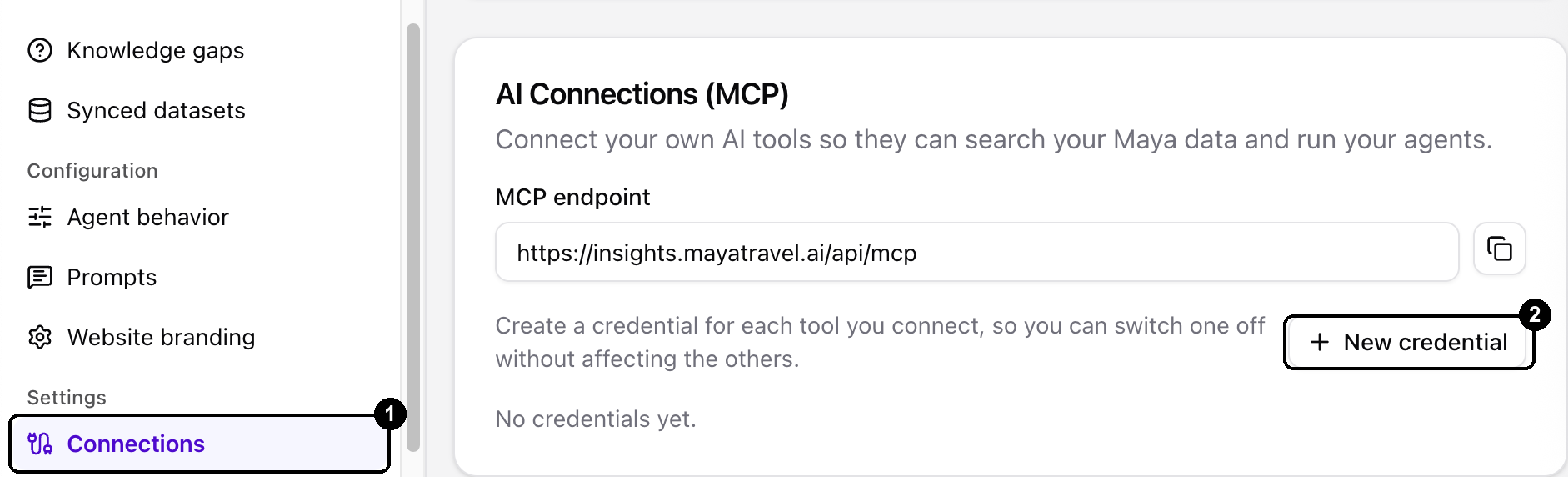
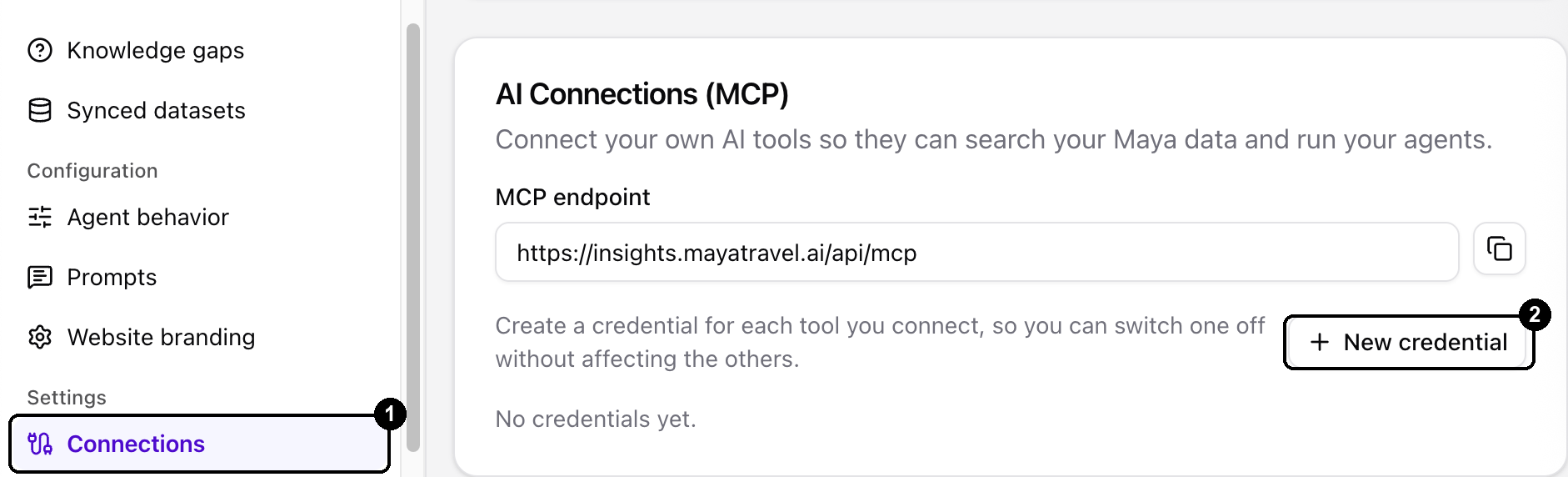
In the Maya Insights dashboard, go to Connections, then the AI Connections (MCP) card near the bottom of the page, then New credential.
-
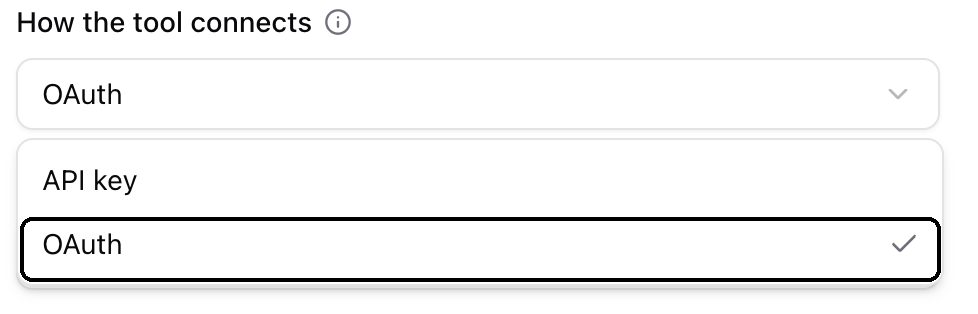
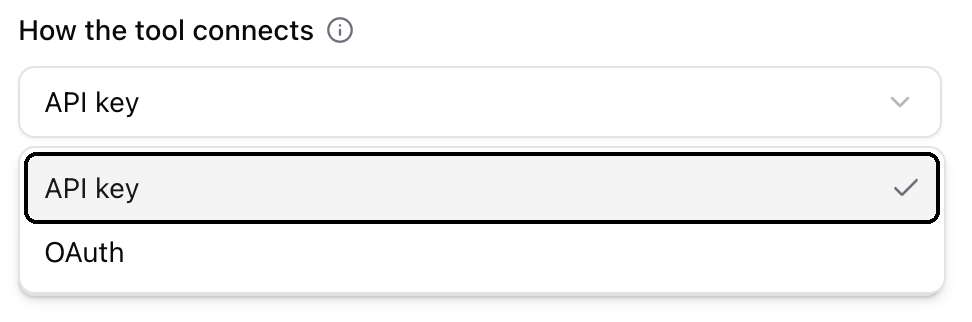
For How the tool connects, choose OAuth.
-
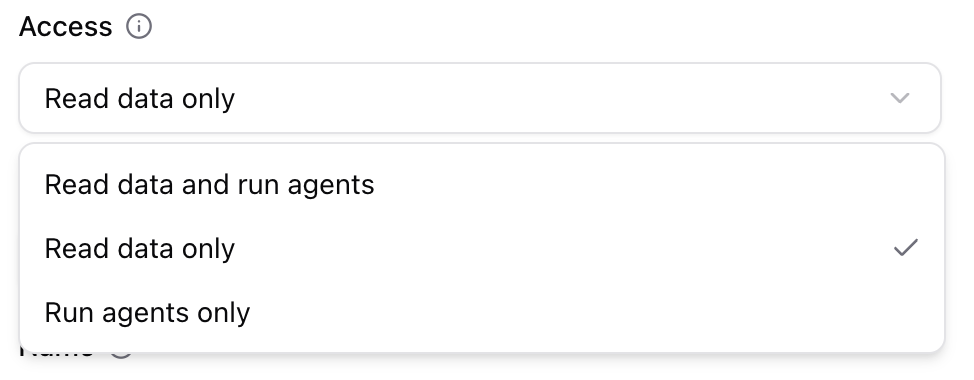
For Access, choose Read data only for analytics and search, Run agents only for running an agent, or Read data and run agents for both. Pick Read data only unless the tool genuinely needs to run agents.
-
Leave the Redirect URL exactly as it is, because Claude's two addresses are already filled in for you.
-
Type a Name you will recognise later, because it is how you tell credentials apart when revoking.
-
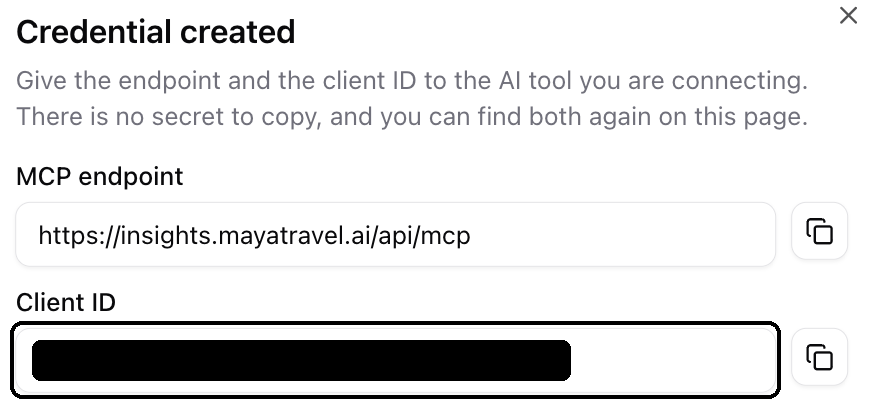
Click Create, then copy the Client ID that Maya Insights shows on the credential.
-
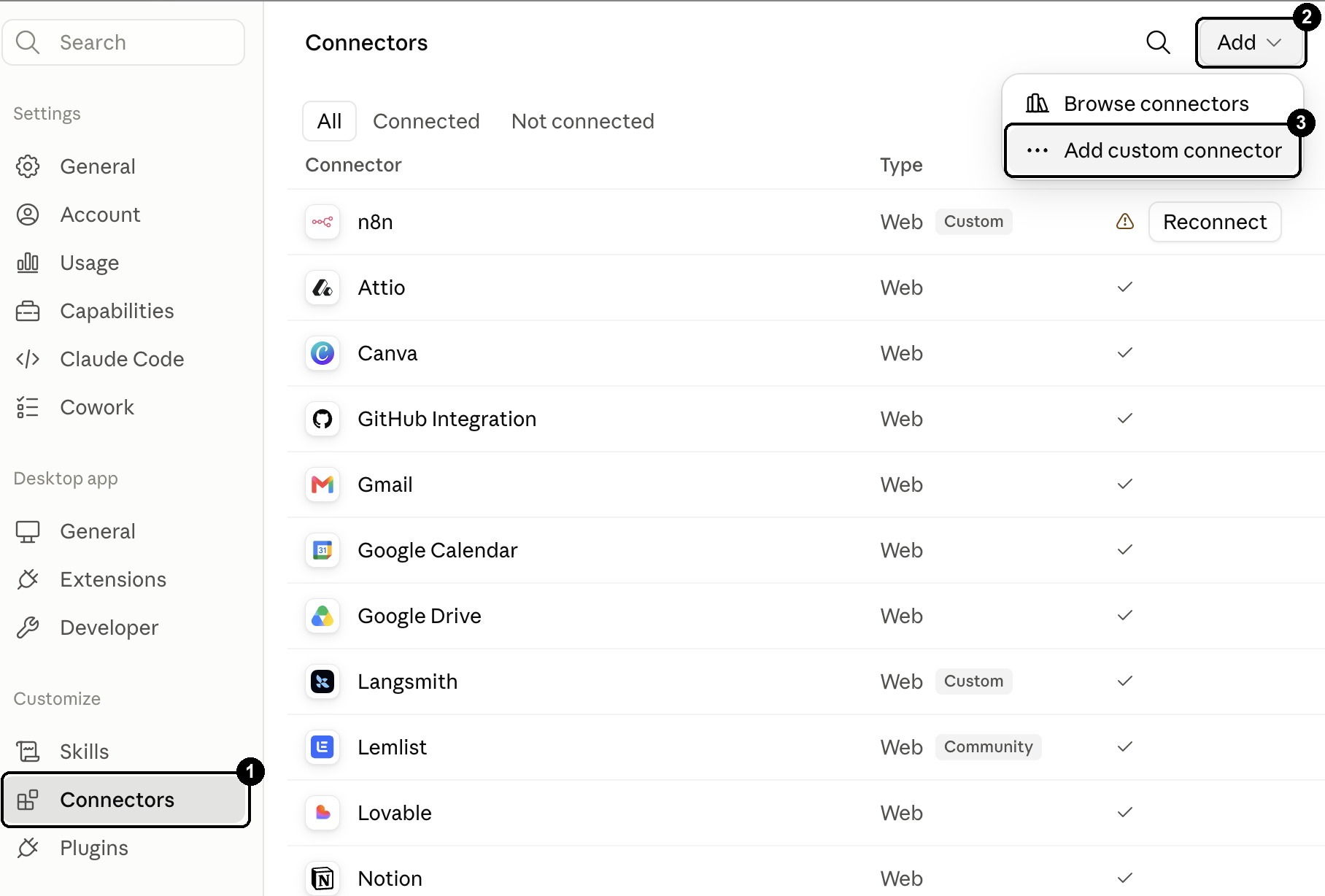
In Claude on the web, open Settings, then under Customize click Connectors, then Add, then Add custom connector.
-
Type a Name, such as Maya, and paste
https://insights.mayatravel.ai/api/mcpinto Remote MCP server URL. Click Advanced settings, then paste the Client ID you copied from the Maya Insights dashboard into OAuth Client ID in Claude. Leave OAuth Client Secret empty.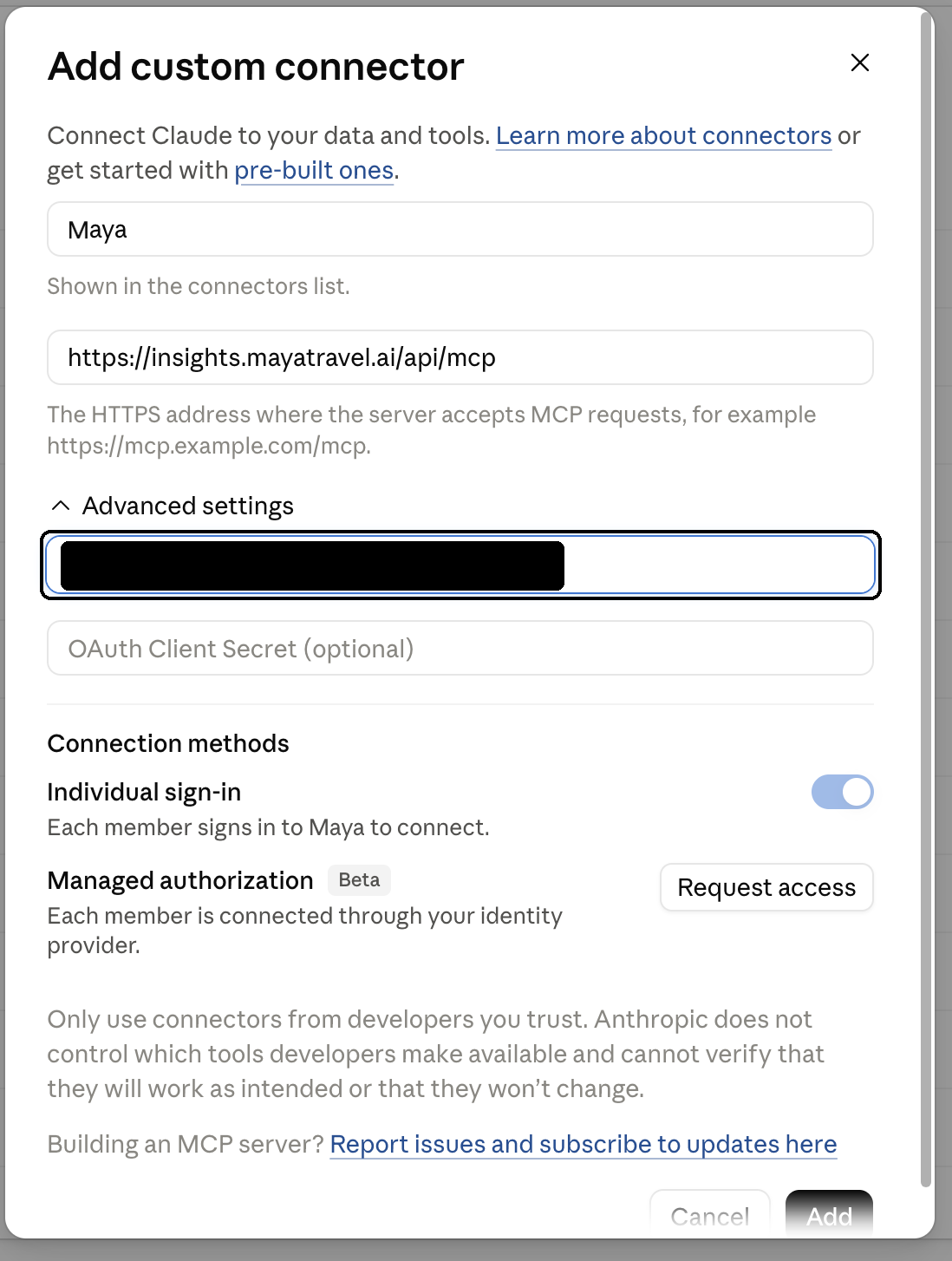
-
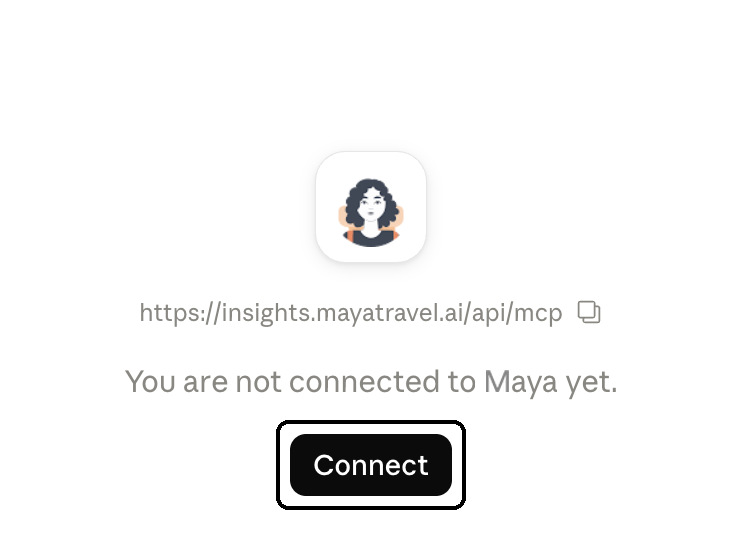
Click Add. The connector then appears saying You are not connected to Maya yet: click Connect, and sign in with your Maya Insights login.
Both OAuth fields are labelled optional, and for many services they are. Not here. Without the Client ID, Claude tries to sign itself up, which Maya refuses, and it stops with "Automatic client registration isn't supported by Maya".
It then works in Claude Desktop too, because connectors follow your account rather than the app you added them in. On a Team or Enterprise plan only an Owner can add a connector, so if you cannot find the option, ask whoever owns your Claude workspace.
ChatGPT, on the web
The ChatGPT web app only (not the ChatGPT desktop or mobile apps, which use an API Key with connection steps explained in section 4).
-
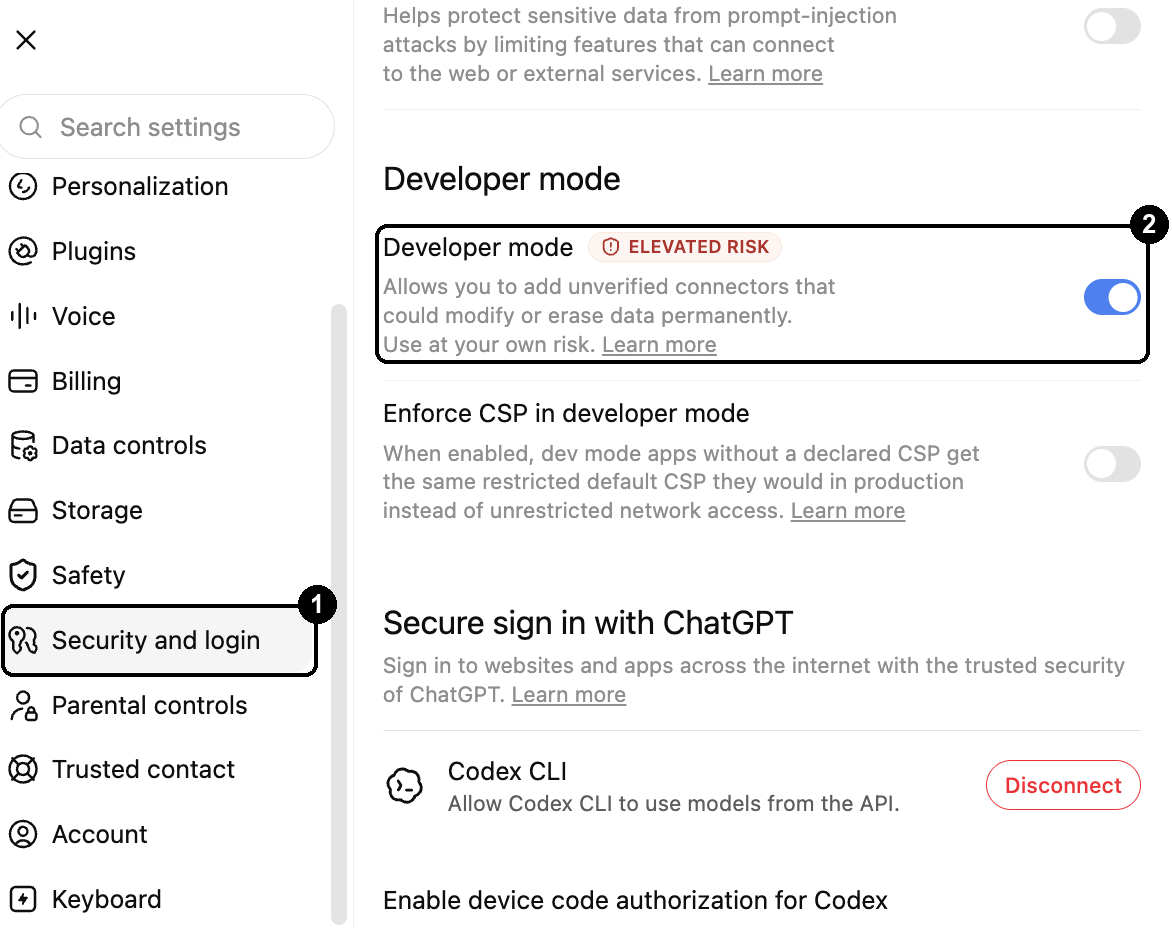
In ChatGPT, go to Settings, then Security and login, and turn on Developer mode. If it is not there, your workspace administrator has to allow it first.
-
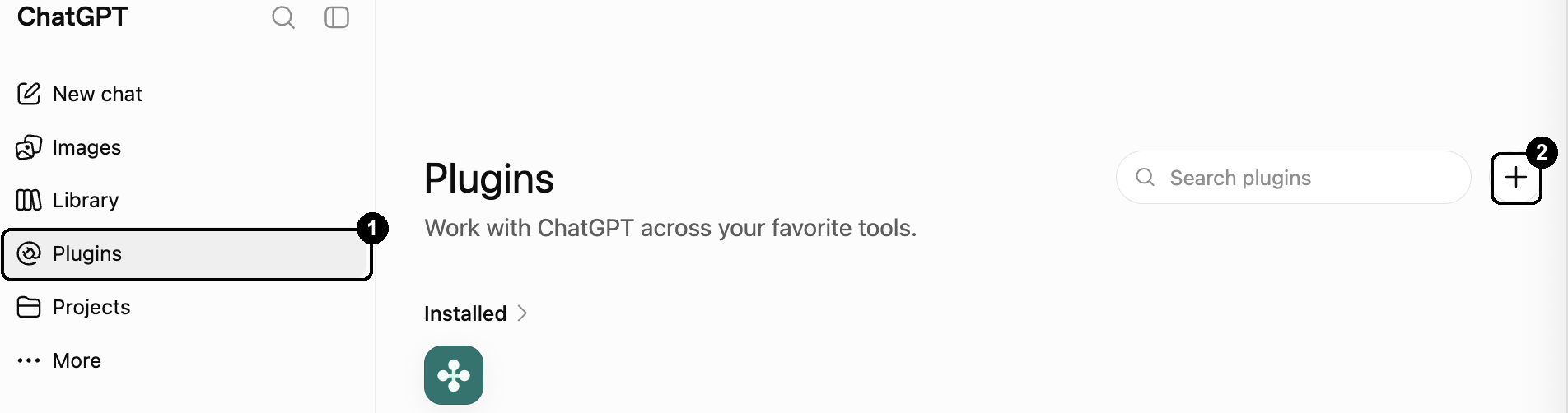
Click Plugins in the left sidebar, then the + at the top right, next to the search box. A New Plugin panel opens. Settings has a Browse plugins link that goes to the same place.
-
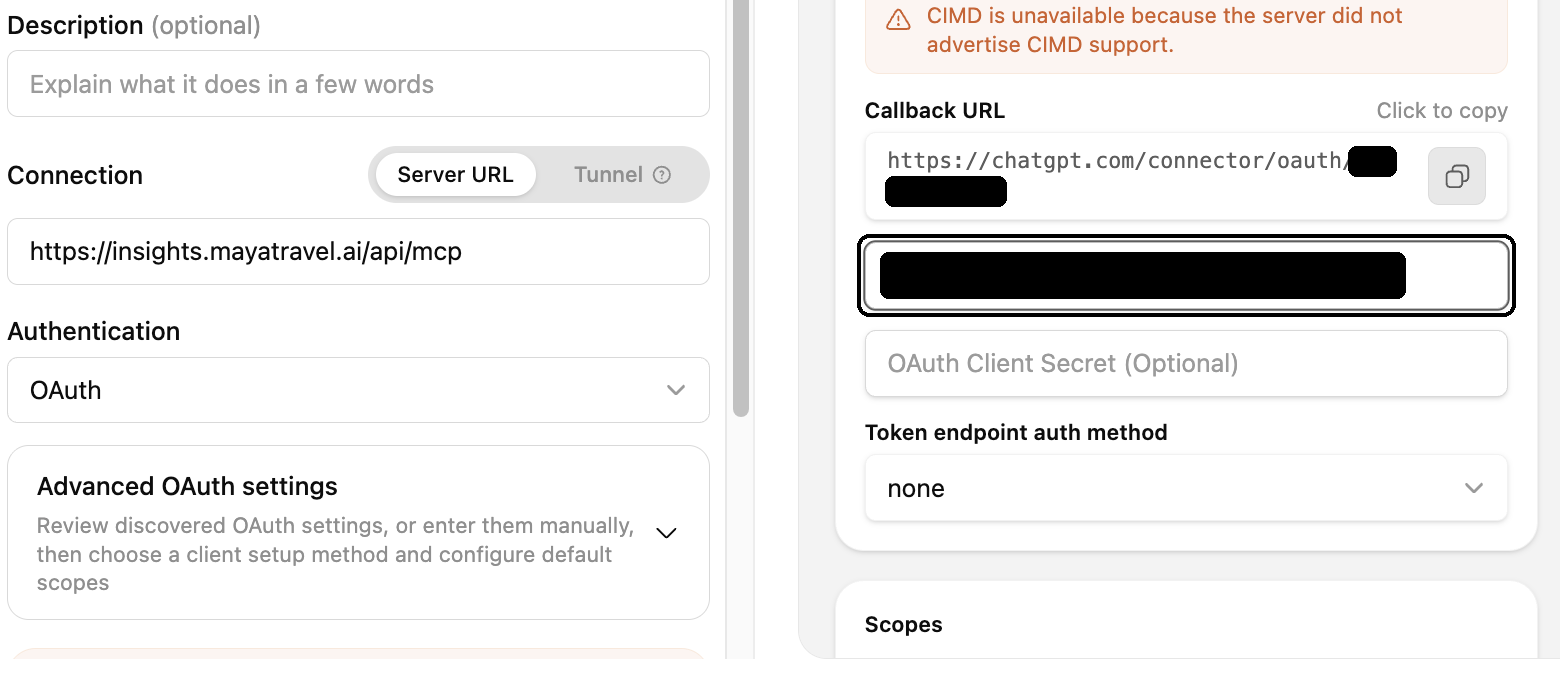
Type a Name, such as Maya. Leave Connection set to Server URL, the side already selected, and paste
https://insights.mayatravel.ai/api/mcpinto the empty box directly below it. That box has no label of its own, and shows a fainthttps://example.com/sseuntil you type in it.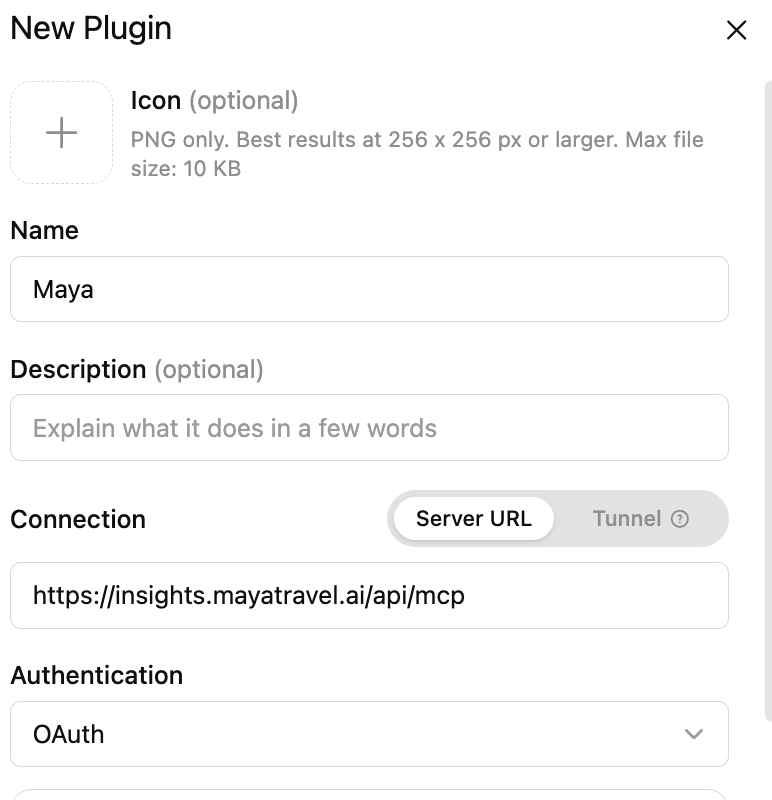
-
Leave Authentication on OAuth, then open Advanced OAuth settings. It will say that two automatic methods are unavailable. That is expected, not an error. Leave Registration method on User-Defined OAuth Client. Copy the Callback URL ChatGPT shows, of the form
https://chatgpt.com/connector/oauth/followed by a short code. Leave this panel open.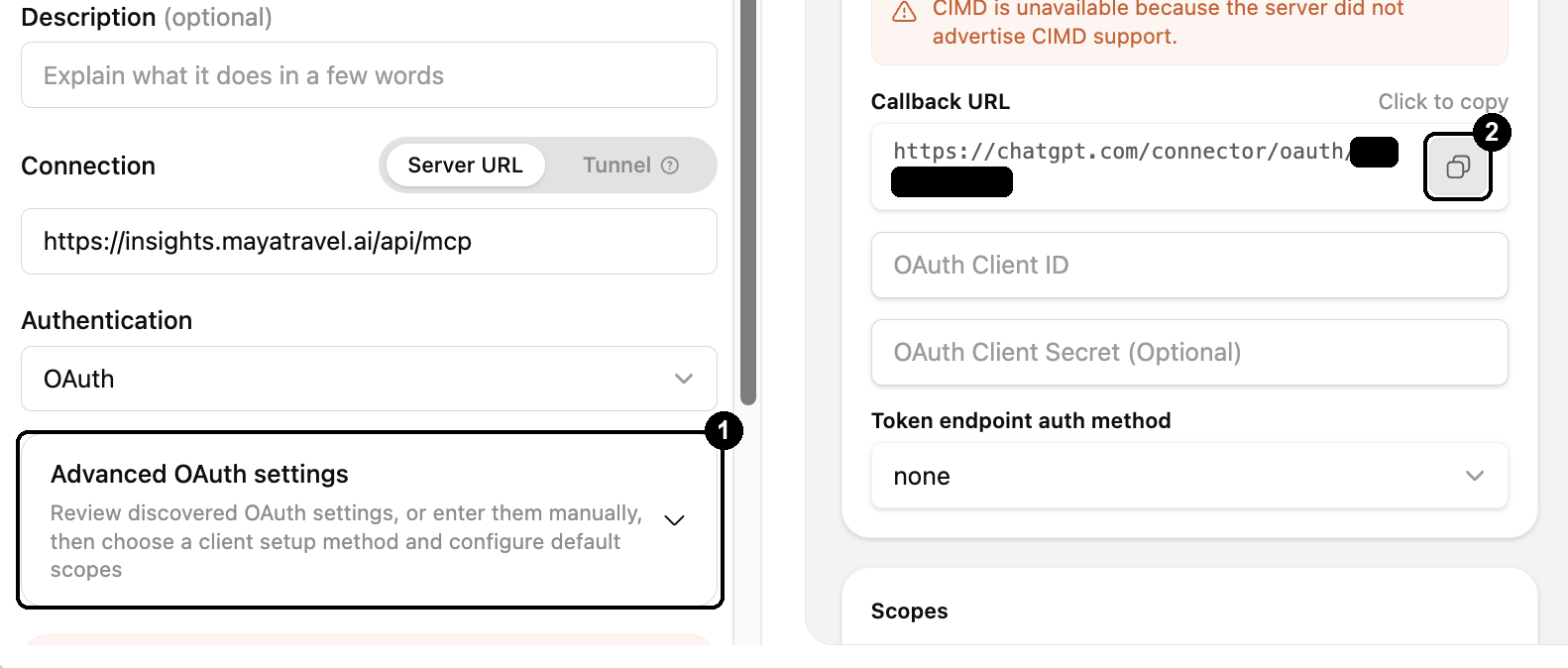
-
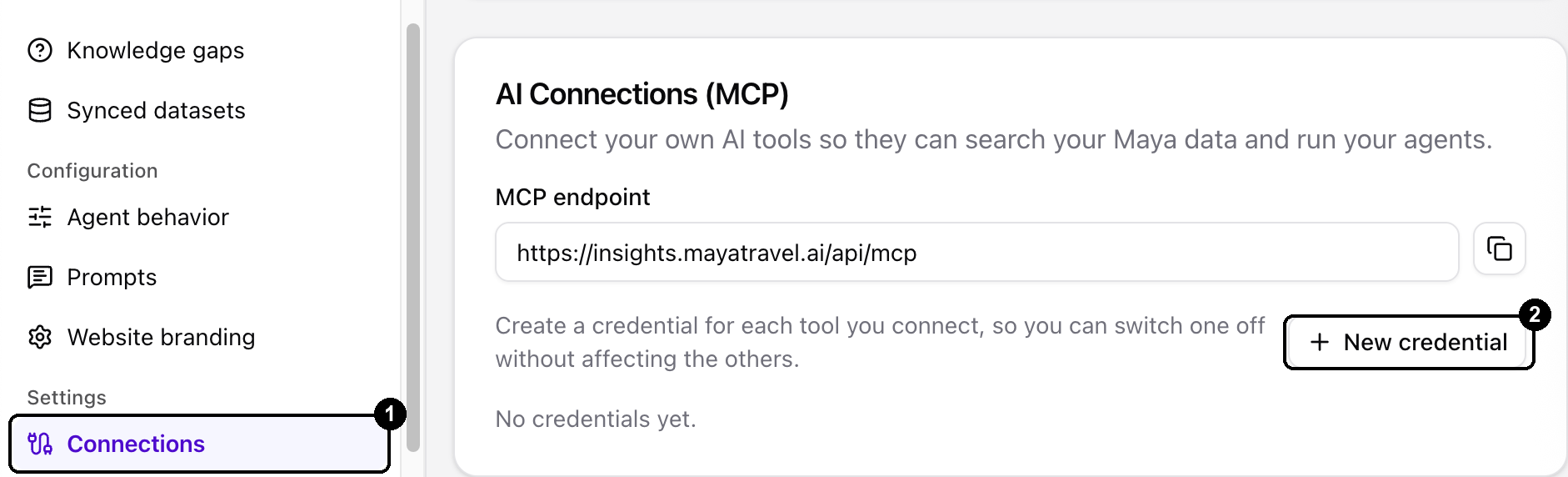
In the Maya Insights dashboard, go to Connections, then the AI Connections (MCP) card near the bottom of the page, then New credential.
-
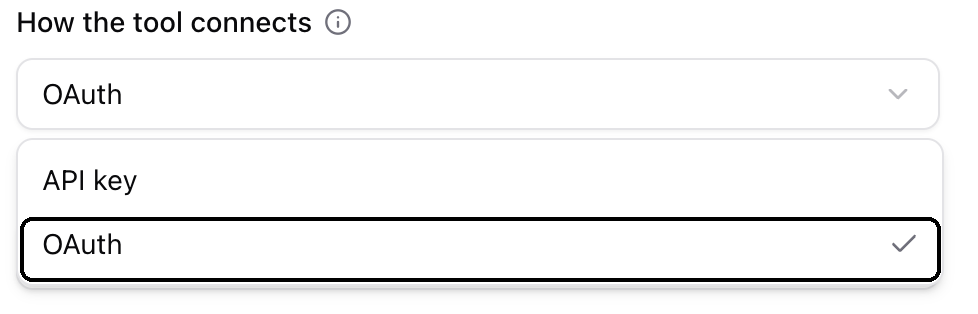
For How the tool connects, choose OAuth.
-
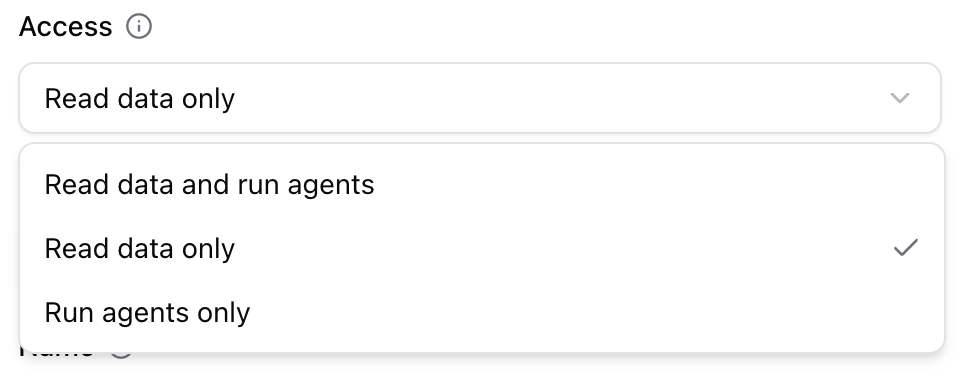
For Access, choose Read data only for analytics and search, Run agents only for running an agent, or Read data and run agents for both. Pick Read data only unless the tool genuinely needs to run agents.
-
Type a Name you will recognise later, because it is how you tell credentials apart when revoking.
-
In Redirect URL, delete the two Claude addresses that are prefilled there and paste the Callback URL you copied from ChatGPT instead.
-
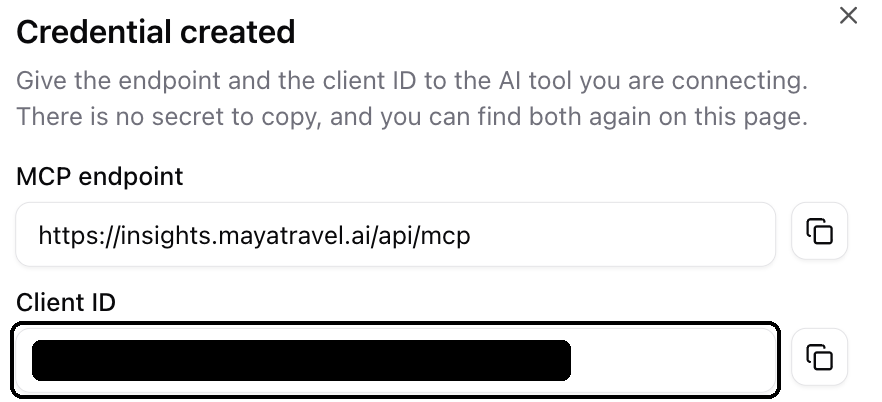
Click Create, then copy the Client ID that Maya Insights shows on the credential.
-
Back in ChatGPT, paste the Client ID you copied from Maya Insights into OAuth Client ID. Leave OAuth Client Secret empty and leave Token endpoint auth method on none.
-
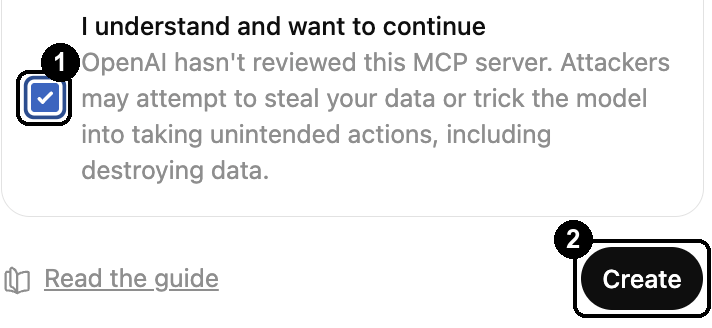
Tick I understand and want to continue, which ChatGPT requires before it will let you finish, then click Create.
-
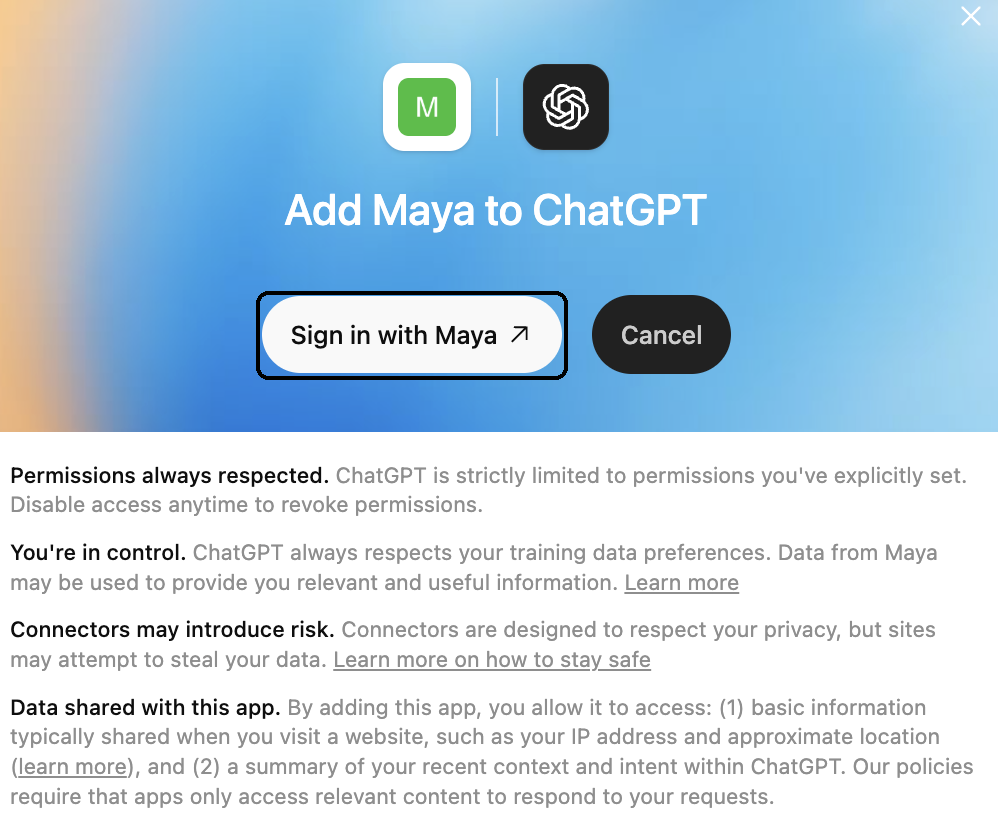
ChatGPT then shows Add Maya to ChatGPT. Click Sign in with Maya and sign in with your Maya Insights login.
Two things that catch people out
The redirect URL must match exactly, and you have to save it first. Whatever the tool sends must match the characters you entered, including the scheme and any trailing path. If it differs at all, signing in is refused. You can edit it afterwards, so a mistake costs one reconnection.
Whoever signs in needs a Maya Insights dashboard login for your organisation. The person clicking through the browser step is checked separately from whoever created the credential. So if a colleague sets up their own assistant using it, they need their own Maya access. Without it the connection looks like it worked and then every question comes back refused.
4. Setting up a tool that uses an API key
Step one, create the key.
-
Sign in to the Maya Insights dashboard and go to Connections → AI Connections (MCP) → New credential. For How the tool connects, choose API key.
-
Type a Name you will recognise later. It is how you tell keys apart when revoking.
-
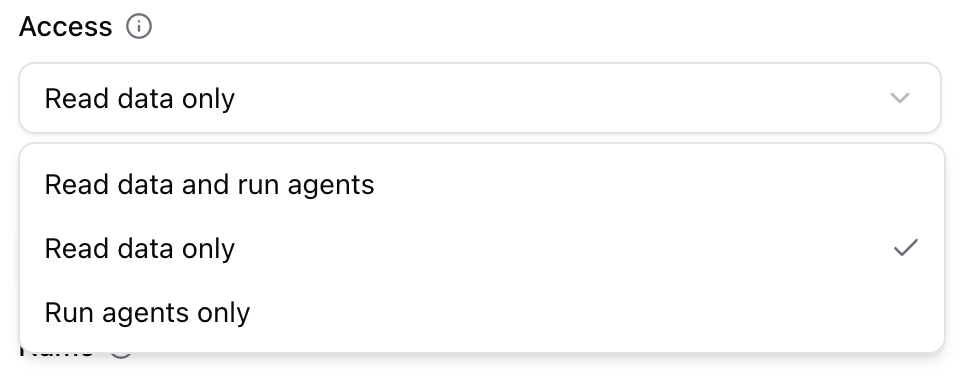
For Access, choose Read data only for analytics and search, Run agents only for running an agent, or Read data and run agents for both. Pick Read data only unless the tool genuinely needs to run agents.
-
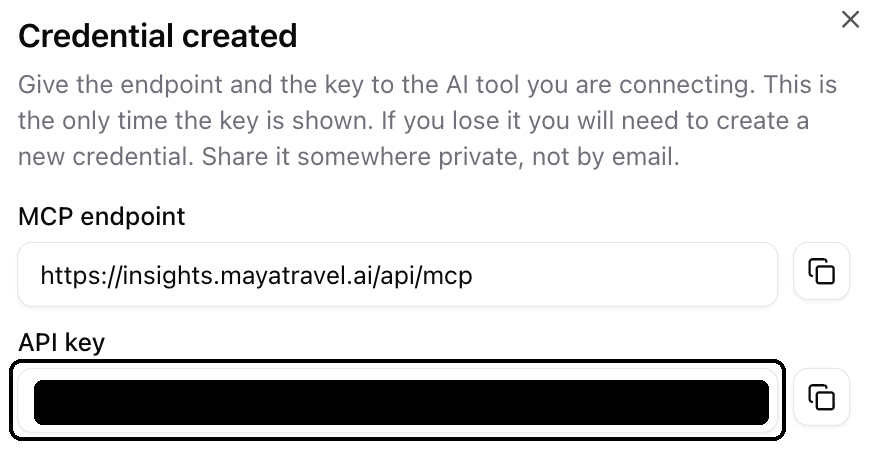
Click Create. The key is shown once and never again. Copy it before closing the dialog. If you lose it, revoke the key and create another.
Step two, put it in your tool. Find yours below and use only that entry. Where a block says YOUR-KEY, paste the key you copied from Maya Insights and change nothing else.
Where a tool offers both a command and a file, the command is easier: there is nothing to type wrong and the tool writes its own settings correctly.
Claude Code. Run this in a terminal:
claude mcp add --transport http maya https://insights.mayatravel.ai/api/mcp --header "Authorization: Bearer YOUR-KEY"
Or edit the file yourself. Add this to .mcp.json in your project folder, creating the file if it is not there:
{
  "mcpServers": {
    "maya": {
      "type": "http",
      "url": "https://insights.mayatravel.ai/api/mcp",
      "headers": { "Authorization": "Bearer YOUR-KEY" }
    }
  }
}
Gemini CLI. Run this in a terminal:
gemini mcp add maya https://insights.mayatravel.ai/api/mcp --transport http -H "Authorization: Bearer YOUR-KEY"
Or add this to ~/.gemini/settings.json:
{
  "mcpServers": {
    "maya": {
      "type": "http",
      "url": "https://insights.mayatravel.ai/api/mcp",
      "headers": { "Authorization": "Bearer YOUR-KEY" }
    }
  }
}
Antigravity. No command for this one. Add this to ~/.gemini/config/mcp_config.json:
{
  "mcpServers": {
    "maya": {
      "serverUrl": "https://insights.mayatravel.ai/api/mcp",
      "headers": { "Authorization": "Bearer YOUR-KEY" }
    }
  }
}
Codex, the command line version. No command for this one either. Add this to ~/.codex/config.toml. Note it is TOML rather than JSON, so the punctuation differs from the blocks above:
[mcp_servers.maya]
url = "https://insights.mayatravel.ai/api/mcp"
http_headers = { Authorization = "Bearer YOUR-KEY" }
Cursor. Add this to .cursor/mcp.json in your project, or ~/.cursor/mcp.json to have it everywhere. Cursor needs no transport setting:
{
  "mcpServers": {
    "maya": {
      "url": "https://insights.mayatravel.ai/api/mcp",
      "headers": { "Authorization": "Bearer YOUR-KEY" }
    }
  }
}
If Cursor ignores the key and opens a browser sign-in instead, follow section 3 and use these fixed addresses for the Redirect URL: https://www.cursor.com/agents/mcp/oauth/callback on the web, or http://localhost:8787/callback in the Cursor desktop app.
A script of your own, or any other tool. Most tools accept the shape below. Look in the tool's own settings for something called MCP servers:
{
  "mcpServers": {
    "maya": {
      "type": "http",
      "url": "https://insights.mayatravel.ai/api/mcp",
      "headers": { "Authorization": "Bearer YOUR-KEY" }
    }
  }
}
To call it straight from a script or the command line:
curl -sS -X POST "https://insights.mayatravel.ai/api/mcp" \
  -H "Authorization: Bearer YOUR-KEY" \
  -H 'Content-Type: application/json' \
  -d '{"jsonrpc":"2.0","id":1,"method":"tools/list"}'
If your tool asks for a transport, or a type, choose Streamable HTTP. In a settings file it is written as http. Do not choose SSE: it is an older method this server does not accept, and a tool set that way usually just says it cannot connect, without saying why.
Look after the key. There is no sign-in step and nobody behind it: anyone holding it can use it, and it works until you revoke it. Treat it like a password. If it reaches someone who should not have it, revoke it, which takes effect on the next request.
5. Check that it worked
Ask your assistant to list the tools it has from Maya. What you should see depends on the Access you chose. With Read data only or Read data and run agents, you get at least five: list_topics, get_knowledge_gaps, get_highlights, list_chats and get_chat, and usually more. With Run agents only, you get none of those five: you get list_agents and run_agent instead, and only if your organisation has AI Workspace agents. Section 6 says exactly which to expect.
If it replies in prose rather than naming them, ask again and tell it to show the raw list. Assistants sometimes describe what they assume is there instead of asking.
6. What the tool will see
With access that can read data, you get these five: list_topics, get_knowledge_gaps, get_highlights, list_chats and get_chat, plus your own search tools. With access that can only run agents you get none of them, which is the point of that setting.
If you have AI Workspace agents, you also get list_agents, and run_agent when the credential is allowed to run agents.
Dates are always whole days in UTC, and from and to both count as inside the range.
An empty result is usually a quiet week rather than a fault. get_highlights is written once a week, so if Maya has not been running long there may be nothing there yet.
7. Limits
A credential may make 60 requests a minute. Running an agent is charged as 6, so roughly 10 agent runs a minute. Over the limit, the tool is told how long to wait rather than silently failing.
8. When it does not work
"Connected, but every call is refused." The person who signed in cannot reach the credential's organisation. See the end of section 3.
Signing in never comes back. The redirect URL does not match exactly what the tool sent. Take the value from the tool's own setup screen and correct it on the credential.
An API key is refused. It was revoked, or it was created with Export conversations, which only works with the Data API. Or the person who created it no longer has access to your organisation in Maya Insights. Create a new key with one of the (MCP) permissions.
The tool says it cannot register itself. That is expected. Maya does not let tools sign themselves up, so the tool needs somewhere to paste the Client ID, or an API key instead. In Claude, the message is "Automatic client registration isn't supported by Maya", and the field sits under Advanced settings. In ChatGPT, it is under Advanced OAuth settings. See section 9.
A tool is missing from the list. A credential or key only ever sees the tools its access allows. The five reading tools and your search tools need access that can read data; run_agent needs access that can run agents. Section 5 lists which options are which. And an organisation with no search set up has no search tools, and one with no AI Workspace agents has no agent tools. Both are normal rather than a fault.
Everything stopped for no visible reason. Check whether the organisation was renamed. A credential is tied to the organisation's short name, so a rename leaves every credential pointing at something that no longer exists and the calls are refused. Nothing is exposed by this, but no message mentions the rename either. If you rename an organisation, issue new credentials afterwards.
9. A note on how the sign-in is secured
You do not need any of this to set the connector. It is here for anyone reviewing how it works.
There is no client secret. Some connectors ask for both a client ID and a client secret. This one has no secret at all, so there is nothing confidential to copy or to keep safe.
PKCE takes its place as the standard modern connector to use. Your tool invents a one-time value at the start of each sign-in and proves it still has it at the end, so nothing reusable is ever stored or sent. There is no secret to leak, and every tool on this page does it automatically.
A Client ID isshown when you create the credential and always visible on the "Connections" page afterwards. No tool can discover it by itself here, because Maya doesn't issue registrations, so both Claude and ChatGPT need you to paste it in.
Tools cannot sign themselves up. Some connectors expect to register with a service automatically, without anyone issuing them anything. Maya does not allow that, on purpose: a credential is something a person creates and can revoke, and we would rather you always know which ones exist. Good tools handle this, Claude and ChatGPT included, by offering a field for the Client ID instead.
A credential or key is fixed once created. You can edit its name, and for an OAuth credential its redirect URL. To change what it can do, revoke it and create a new one.